

Kommo CRM
Connect your GoTo experience with Kommo integration and empower your workflows and communications with calls and lead cards. Start by including your Kommo leads from any GoTo Connect call.
- Home

- Integrations
Kommo
Website
www.kommo.com/integrations/goto-connect
Integration Category
Sales and Marketing
Used with
GoTo Connect
Overview
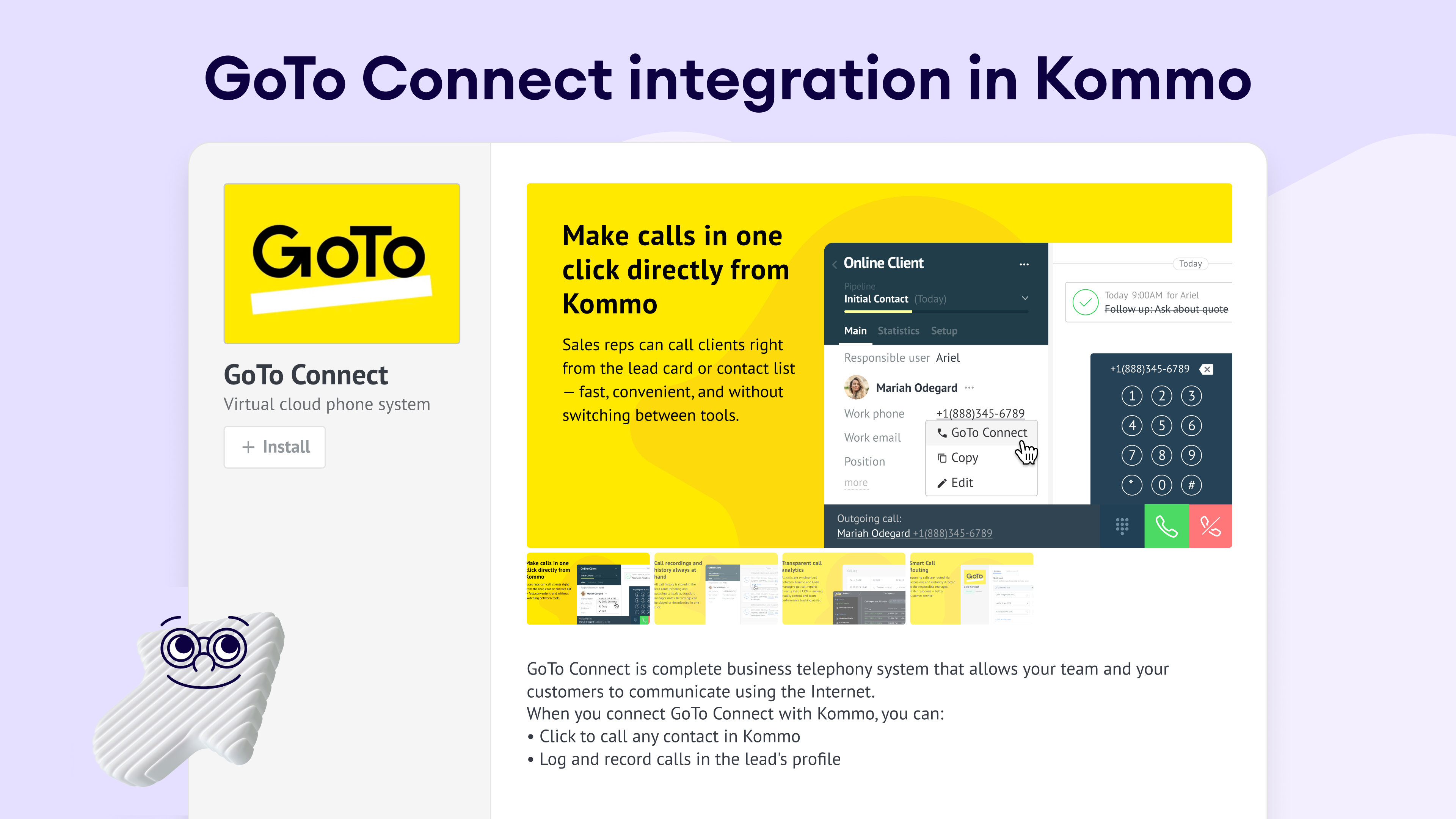
GoTo Connect + Kommo lets you make calls with a single click using lead cards.
- Automatic call logging: Organize your sales process and keep all the records and details of your calls, including duration and outcome, in each lead card.
- Click-to-call functionality: Eliminate all manual calling to clients so you can initiate calls directly for a lead card with a single click and streamline workflows and team operations.
- Call reminders: Include automated reminders for follow-up calls to optimize your relationships and ensure timely communications with leads.
- Faster follow-ups: Activate your automated tasks after calls, such as scheduling a meeting or sending an email, to make any customer contact faster.
- Download conversations: Download the transcribed conversations to keep a routine record of your processes and thus improve daily operations.
- Achieve confidence: Increase each client's positive experience with the organic and optimized call process. With more satisfaction, you can lead to more sales.
How to Install
How to integrate both tools
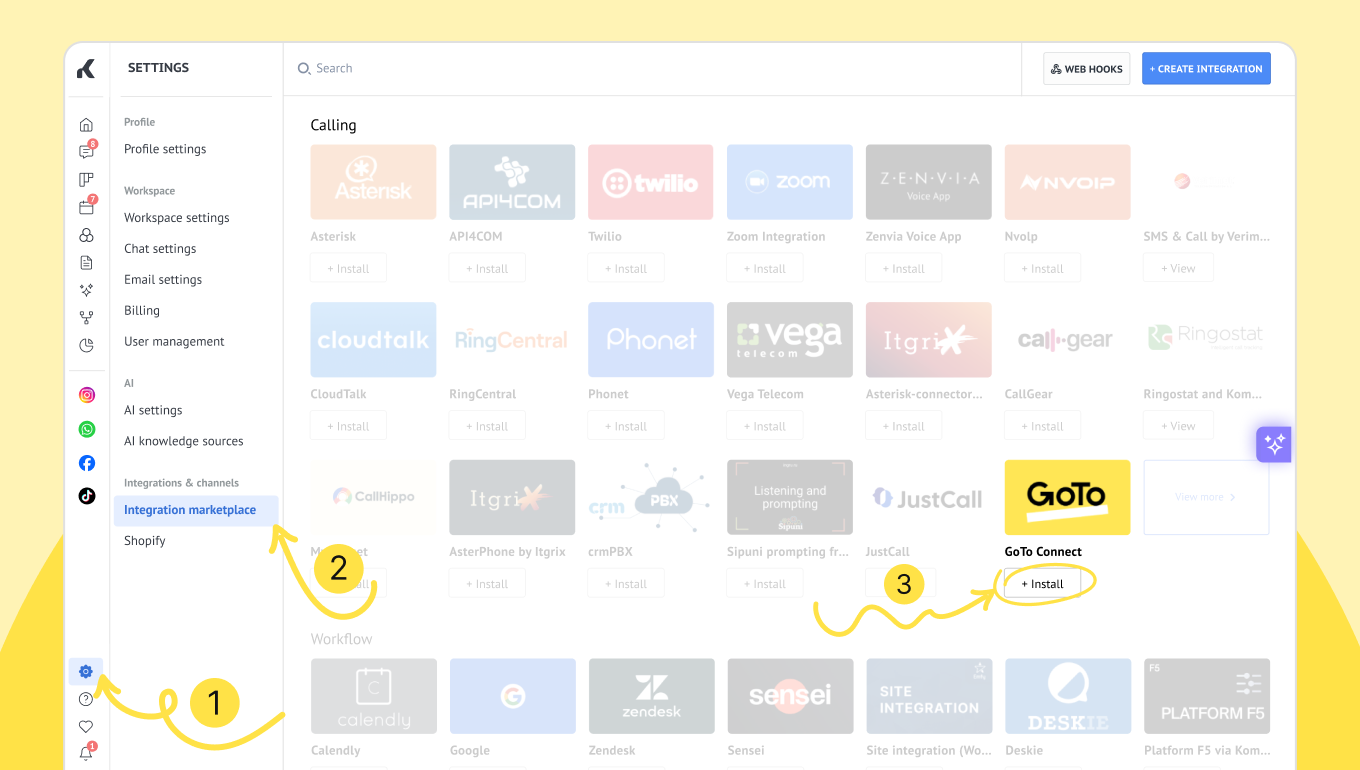
- Go to Settings > Integrations inside your Kommo account, select the GoTo Connect widget in the Calling section. Accept the privacy policy and click Install.
- Next, follow the instructions in the widget to open GoTo Connect and sign in to your account. Follow this link to create a new client to make a new connection with Kommo.
- In GoTo Connect, pick a client name and paste the URL given by Kommo in the GoTo Connect widget.
- Now, click Next in both Kommo and GoTo Connect accounts.
- In the Scopes step at GoTo Connect, select the 'Admin Center' and 'GoTo Connect' boxes from the options provided.
- When you hit Save, you will move on to the Credentials step, and GoTo Connect will provide you with a 'Client ID' and 'Client secret.'
Note: Your 'Client secret' will only be generated once. If you don't manage to copy it, you'll have to start over. - You have to paste the codes you just copied into the corresponding fields of the widget in Kommo. When you are done pasting the codes, click Next.
- Now, you will have to grant permission to your Kommo account by following the link in the widget and clicking Allow. After that, go back to your Kommo account.